Using Upsales to plan an event? Use the Guest list tab to view names, email addresses, and statuses for contacts included in the event.
-
Click Marketing → Events
Events requires the Events add-on, and your user needs access to Events. Otherwise Events is not shown in the menu.
-
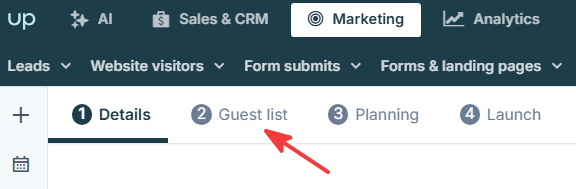
Click the event and then click the Guest list tab:
Filter contacts by clicking the dropdown:
-
All contacts - all contacts included in this event
-
Invited - all contacts who have received an invitation email
-
Signed up - all contacts who have signed up for the event
-
Attended - after the event, shows contacts who were checked-in for the event
-
Declined - contacts who chose not to attend the event
-
Email errors - contacts who have unsubscribed from email marketing or have email errors
-
Waiting list - contacts who signed up after your limited seats for the event were filled. Shown only for events with a waiting list.
-
Signed up on demand - contacts who signed up for a webinar after its start time. Shown only for webinars offered on demand.
-
Attended on demand - contacts you have marked as having watched the webinar on demand. Shown only for webinars offered on demand.
You can quickly check in contacts using the Check in contacts button next to the contact’s name. The button is not shown for contacts who are already checked in. For contacts on the waiting list, the button reads Set as attending and is disabled while there are no available seats. To check in several contacts at once, select them and choose Check in selected.
Setting the Contact's Status
To manually set the contact’s status, select the arrow next to the contact’s current status for the event.
Status changes and check-in are available once the event is launched. Before that, the guest list shows each contact’s status without the arrow.
Options depend on the contact’s current status, including:
-
Signed up - manually register contact for the event
-
Check in contacts - check in the contact (status Attended)
-
Declined - set the contact as not attending. They stay in the guest list under the Declined filter
-
Invited - set the contact to invited
-
Send invite again - resend the invitation, shown when the invitation email could not be sent
-
Signed up on demand and Attended on demand - shown for webinars offered on demand
Checked in a contact by mistake? To change a contact from Attended back to registered, click the arrow next to Attended and choose Signed up.